Ui.Vision Version 10 comes with 5 different OCR options for screenshot image to text conversion. Each has its own advantages:
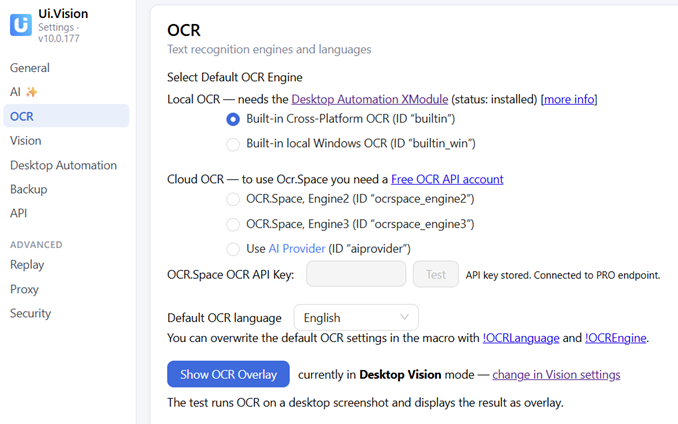
In general the key difference between local OCR and cloud OCR is:
-
Local OCR: Very fast and your data never leaves your machine
-
Cloud OCR: Better overall OCR quality, but slower and processing in the cloud.
Local OCR
-
builtin - OCR directly integrated in the XModule. Fast and good, and exactly the same across all supported platforms (Mac, Windows, Linux)
-
builtin_win Uses the XModule to “talk” to the integrated Windows OCR. Very fast and good. If you use Windows and want local OCR, the best option.
-
builtin_mac Uses the XModule to “talk” to the integrated Mac OCR. Very fast and good. If you are on Mac and want local OCR, the best option.
Cloud OCR
-
ocrspace_engine2 - very good Cloud OCR provided by the Free OCR API ← get a free api key here service from OCR.space. Usually better OCR than the local OCR options and OCR.space has a very strong privacy policy.
-
ocrspace_engine3 - best Cloud OCR provided by the Free OCR API service from OCR.space. Best OCR Engine for text OCR on tricky small words, number OCR or similar challenging OCR tasks. Unnecessary for easier OCR tasks e. g. this clear black on white forum text.
-
aiprovider - uses the selected AI provider LLM to do the OCR. So the OCR quality depends on the LLM used. For our own Ui.Vision AI provider service, we made sure that the OCR quality is very good. The text OCR quality is about the same as OCR.Space Engine3 while the bounding box x/y accuracy is better. (If you use a local LLM, “aiprovider” OCR is actually a local OCR option).
Usage example:
// Demonstrates browser-scope OCR text matching with an unambiguous phrase.
const matches = uiv.ocr.findTexts('Ui.Vision OCR Options explained', {
  scope: 'browser',
  engine: 'builtin',
  timeout: 15
});

if (matches.length !== 1) {
  throw new Error(`Expected exactly one heading match, found ${matches.length}`);
}

const match = matches[0];
uiv.log(`OCR findText matched: ${match.text} at (${match.x}, ${match.y})`, 'green');
uiv.banner(`OCR findText matched <b>${match.text}</b>`, { seconds: 5, tone: 'green' });

if (!match.rect || match.rect.width <= 0 || match.rect.height <= 0) {
  throw new Error('OCR findText returned no usable match rectangle');
}
As with all Ui.Vision features, you can also look at the RPA source code directly, or point your code-generating LLM at it.