Copyfish 7 is the biggest update we’ve shipped in years.
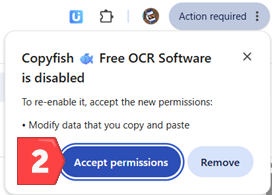
New permission needed: Copyfish V7.0 .16 requests the “Clipboard write” permission. This fixes the “Auto-Copy OCR result to clipboard” feature.
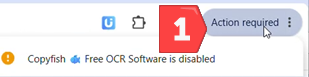
To re-enable Copyfish first click “Action required”…
…and then allow the clipboard access:
Here’s what’s new:
 Local OCR — OCR without the cloud
Copyfish can now run OCR completely offline, on your own machine. Select the new Local engine in the dropdown and your screenshots never leave your computer - nothing is uploaded anywhere. Great for privacy-sensitive content and for working without an internet connection
Local OCR is powered by the new XModule2 (Ui.Vision Desktop Automation module), the same helper app Ui.Vision RPA uses, so one install serves both extensions. The OCR models (~12 MB) download automatically the first time you use it.

 Desktop capture, the native way
Desktop OCR (for PDF viewers, other apps, restricted browser pages…) now uses your operating system’s own screenshot UI:
Windows: the system snipping overlay — the same UI as Win+Shift+S
macOS: the native region selector — the same UI as ⌘⇧4
Prefer the old style? A new “Screenshot selector” setting lets you switch to the built-in selector: Copyfish captures the full screen and you drag-select the area to OCR right on the screenshot (this is the only mode on Linux).
 New keyboard shortcuts
Ctrl+Shift+I — Desktop text capture, instant
Ctrl+Shift+U — Desktop text capture with 3-second delay (time to open a menu!)
Ctrl+Shift+C — OCR an image straight from the clipboard — now works on any page, even restricted ones like the Chrome Web Store, and even when the browser isn’t focused
 Dark mode
Copyfish now follows your system theme automatically. Dark result window, dark dialogs, and a matching toolbar icon.
 Redesigned result window
The window sizes itself to the captured image — small captures get small windows
While OCR runs, you see live progress: which engine is being called, a ticking timer, and a scan animation sweeping over your capture
Switch OCR engines right in the result window; the OCR re-runs instantly
On narrow windows the buttons collapse to icons instead of wrapping, and the Copy button flashes a checkmark so you know the text is on your clipboard
Copyfish remembers your preferred window size (full / minimized) for the next capture
New optional auto-hide: the result window can close itself after copying
 New settings page
Settings are now organized in tabs (OCR, Local OCR, Misc), including a diagnostics section that tests the helper-app connection and desktop screenshots with a live preview. On macOS it also shows the Screen Recording permission status with a one-click “Request access” button.
 Problems? Questions? Suggestions? Let us know here in the forum.